
See How Your Windows PC Is Doing.
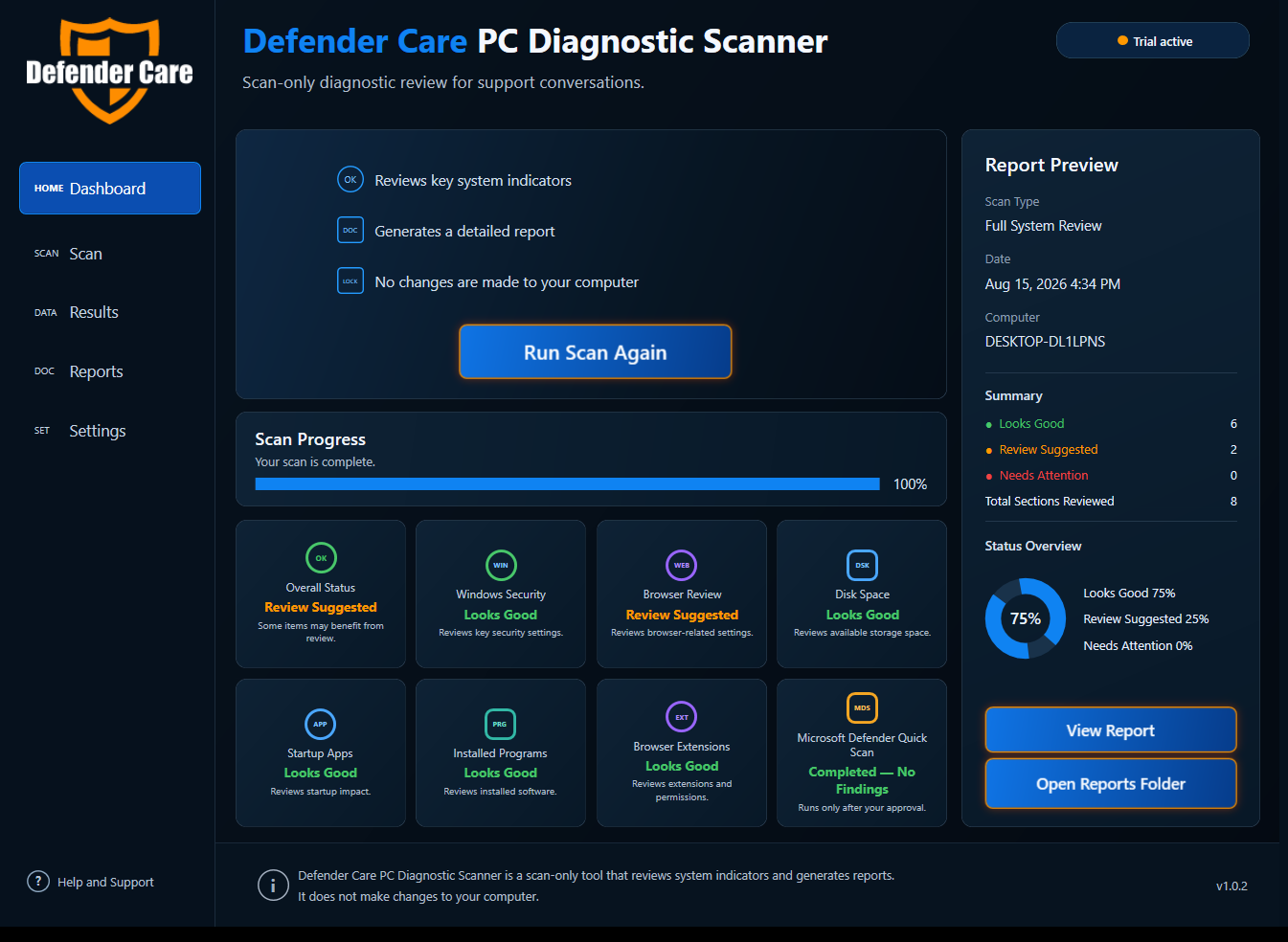
Defender Care PC Diagnostic Scanner reviews key system indicators, organizes the results into an easy-to-read report, and helps you understand what looks good and what may deserve a closer look.
What the Scanner Reviews
The diagnostic focuses on practical Windows system indicators and presents them in plain language.
Windows Security
Reviews key Windows security indicators such as Microsoft Defender and firewall status.
Browser Review
Reviews browser-related readiness indicators and extension information when available.
Disk Space
Reviews available system-drive storage against diagnostic thresholds.
Startup Apps
Reviews applications configured to start with Windows.
Installed Programs
Reviews installed software metadata and available publisher/signature information.
Browser Extensions
Reviews extension information and permissions that are available to the diagnostic.
System Information
Collects Windows and computer information needed to prepare the diagnostic report.
Optional Defender Scan
Can run a Microsoft Defender Quick Scan only after you approve it.
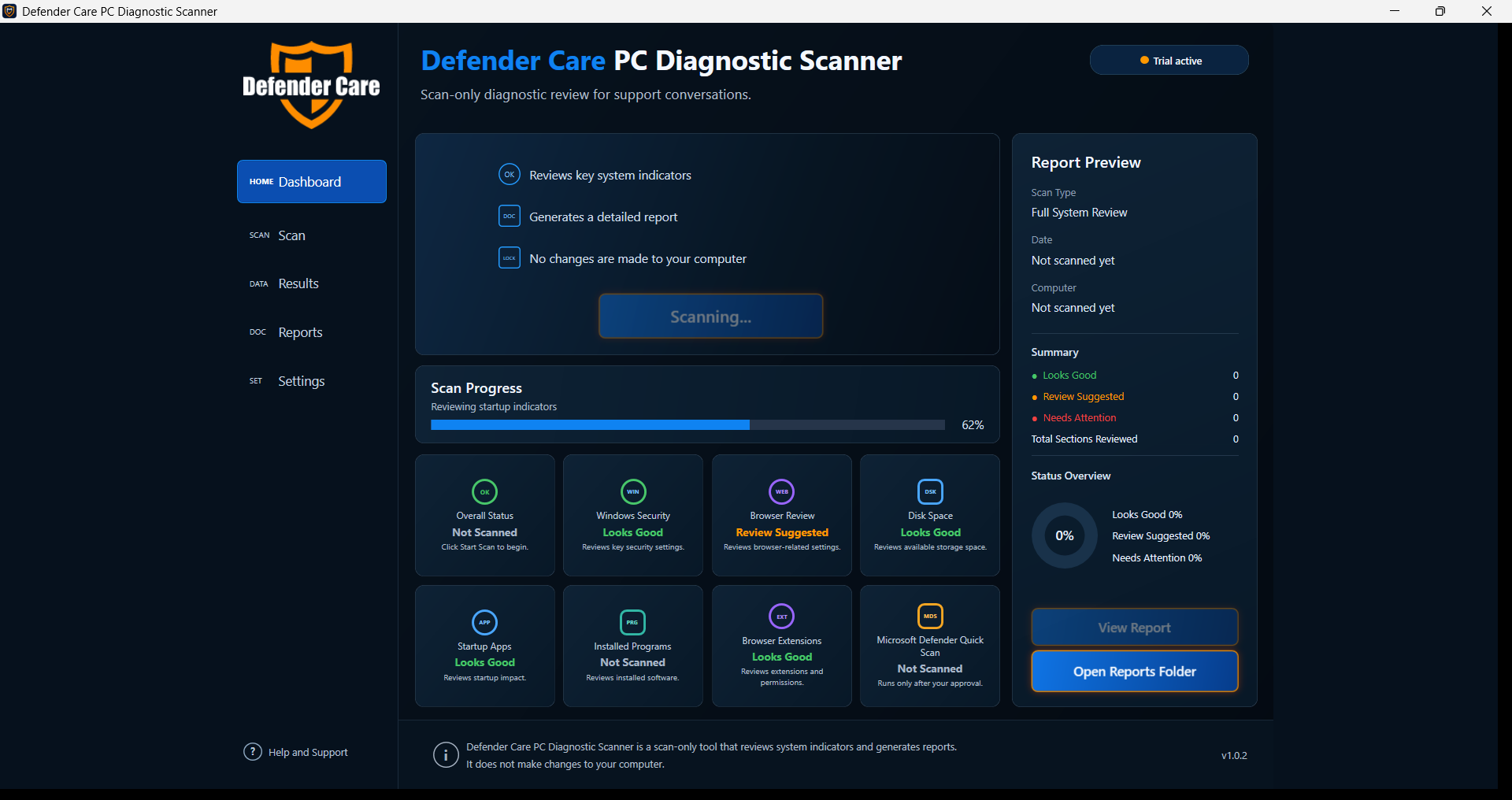
Run the diagnostic and watch the progress.
The Scanner walks through each review area and keeps the progress visible while it works.
- You start the scan yourself.
- Status updates appear as sections are reviewed.
- The diagnostic does not make changes to your computer.
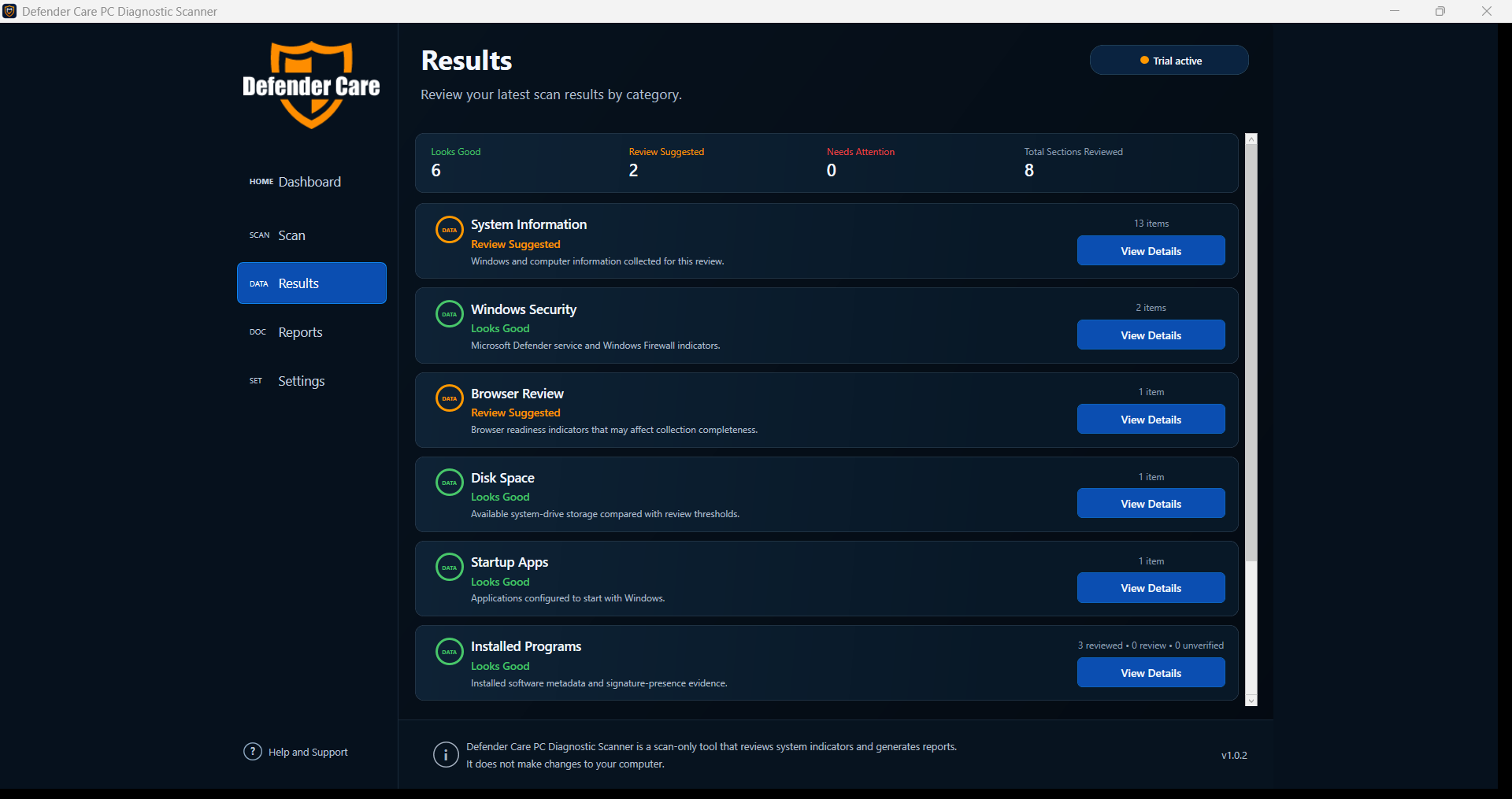
Understand the results by category.
Instead of a single vague score, the Results page shows each reviewed category and lets you open the details behind it.
- See what Looks Good.
- See where Review Suggested appears.
- Open individual details when you want more information.
Keep a detailed report.
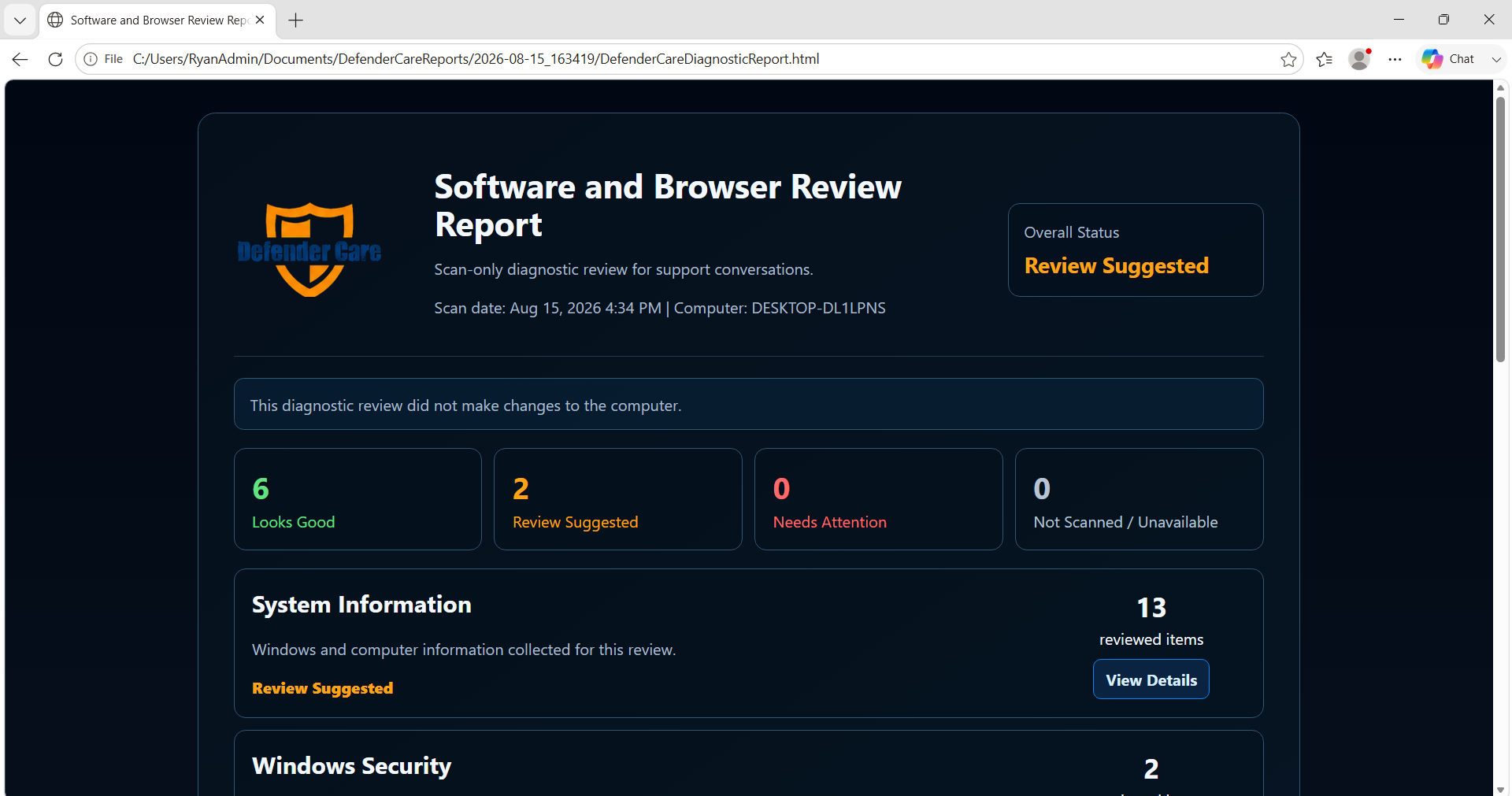
The Scanner generates a detailed local report so you can review what was checked and discuss the results with a Defender Care representative if you choose.
- Review categories and status summaries.
- Open detailed sections from the report.
- Reports clearly state that the diagnostic did not make changes to the computer.
Designed for diagnosis, not access to your private life.
The Scanner is designed to review system indicators needed for the diagnostic. It is not designed to read your personal documents, capture passwords, access your banking credentials, or make automatic changes to your PC.
What you stay in control of
Start with 3 complimentary scans.
Download the Defender Care PC Diagnostic Scanner for Windows, or schedule a short installation-assistance appointment if you would rather have someone guide you through it.
PC Diagnostic Scanner FAQ
Clear answers to the questions customers ask most often.
Why is Windows SmartScreen warning me about the download?
Microsoft SmartScreen uses reputation signals when evaluating downloaded applications. A warning can appear for newer or less commonly downloaded software even when the installer is digitally signed. Confirm that you downloaded the Scanner from Defender Care or downloads.opp-works.com and verify the publisher shown by Windows before continuing.
Does the diagnostic fix or change anything on my computer?
No. The Defender Care diagnostic is scan-only. It reviews system indicators and generates reports; it does not automatically fix, clean, optimize, or change your computer.
Is this an antivirus program?
No. The PC Diagnostic Scanner is a diagnostic and reporting tool. An optional Microsoft Defender Quick Scan can be run with your approval, but the Defender Care Scanner itself is not a replacement for antivirus software.
Can it see my personal files, passwords, email, or banking information?
The Scanner is designed to review system indicators needed for the diagnostic, not to read personal documents or collect passwords or banking credentials.
Do I have to give Defender Care remote access to my computer?
No. You can install and run the Scanner yourself. Remote installation assistance is optional and should only be used if you request it.
What happens if the scan says “Review Suggested” or “Needs Attention”?
Open the result details and review what the Scanner found. If you want help understanding the result, a Defender Care representative can discuss the report with you. The diagnostic itself does not make changes.
Will it keep running in the background after the scan?
The diagnostic is intended to run when you choose to start a scan. It is not marketed as a real-time monitoring or protection product.
Can I uninstall it later?
Yes. The Scanner is a Windows application and can be removed through the normal Windows uninstall process when you no longer want it installed.